
Many SaaS founders and indie hackers start with the same thought process: you need an organic traffic engine, you already pay for a Workspace account, and you notice the official Google Sites creator sitting right there in your app drawer. It’s free, it drag-and-drops effortlessly, and it shares the same familiar interface as Docs and Sheets.
But building a scalable content marketing engine is entirely different from throwing up a quick digital portfolio or an internal team wiki.
Google Sites is a website builder, not a Content Management System (CMS). It lacks a native "Publish Post" button, it doesn't generate RSS feeds, and it doesn't automatically organize your content by date or category. To run a blog on Google Sites, you have to build manual workarounds for features that platforms like WordPress or Ghost handle natively out of the box.
This guide breaks down exactly how to force Google Sites to work as a blog, the technical SEO limitations that hold it back, and when it makes sense to upgrade your infrastructure.
What Is a Google Sites Blog? (The Workaround Reality)
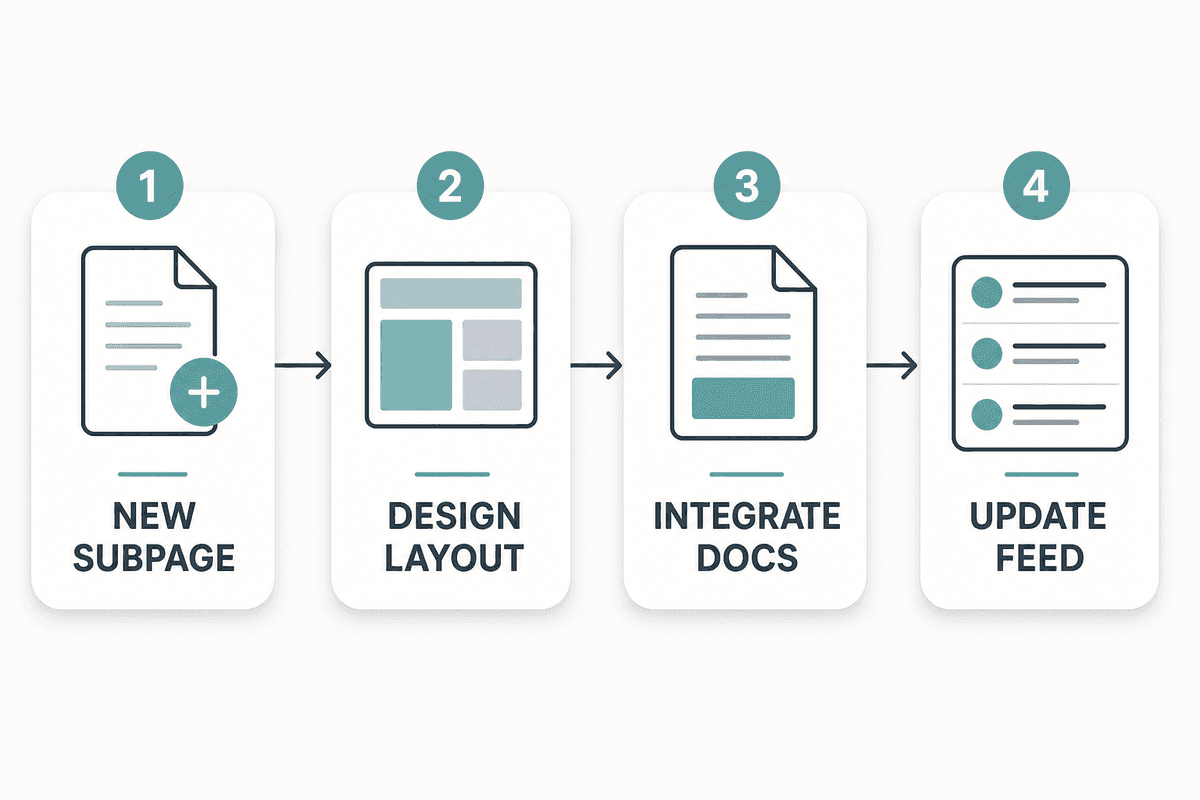
Because there is no native blogging feature in Google Sites, maintaining a blog requires you to create a standard parent page (e.g., "Home" or "Blog") and manually add a new subpage for every single article you write.
According to industry practitioners, blogging with Google Sites means manually designing "post" layouts, creating link directories, and managing your own pagination.
The Anatomy of the Google Sites Blogging Workaround
To mimic a blog feed, content marketers typically rely on the "Announcements" layout or manual hyperlinking. Here is how the process actually works when you sit down to publish:
- Create a New Subpage: You open your Google Sites dashboard, navigate to your "Blog" parent page, and create a nested subpage.
- Design the Layout: You drag in a text box for the H1 title, another block for the featured image, and a continuous text block for the body.
- Integrate Google Docs (Optional): Many users prefer to write in Docs and use the embed feature to drop the document directly onto the page. While this is fast, embedded Docs are rendered in iframes, meaning search engines struggle to index the text effectively.
- Update the Main Feed: Once the subpage is published, you must go back to your parent "Blog" page, add a new image block, write a short excerpt, and manually link it to your newly created subpage so readers can find it.
This workflow is perfectly fine for a high school teacher posting weekly syllabus updates, but it creates a massive operational bottleneck for a business owner trying to publish thirty articles a month to capture market share.
Google Sites Website Examples Gallery
Before abandoning the platform completely, it helps to look at where Google Sites actually excels. When browsing through different google sites examples, you will notice the platform is heavily skewed toward static, informational layouts rather than dynamic, high-volume publishing.
Intranet & Team Sites
This is the undeniable superpower of Google Sites. If you need a private, secure hub for your company where employees can find HR guidelines, Sheets containing public holiday schedules, and embedded Vids from the CEO, Google Sites is unmatched. Access control is handled seamlessly through Workspace permissions.
Digital Portfolios
Freelancers and job seekers frequently use Google Sites to host their resumes and project portfolios. You can create an About page, link to external work, and embed a contact form without ever touching a line of code or paying for hosting.
Company & Business Websites
For brick-and-mortar stores or service businesses that just need a digital business card, Google Sites gets the job done. A restaurant can list its menu, embed a Google Map, and use Forms for catering inquiries. However, if that same business wants to aggressively compete for local keywords, they will hit a wall due to the platform's SEO restrictions.
The Design Process: Building Your First Draft
If you decide the manual workaround is acceptable for your current growth stage, setting up the foundation of your site is straightforward.
1. Choosing Custom Professional Google Sites Themes
The platform offers a limited selection of base templates. While you cannot purchase premium third-party themes like you can on Shopify or Webflow, the built-in themes are responsive and mobile-friendly. You can customize brand colors, upload a custom logo, and select typography that matches your company guidelines.
2. User-Friendly Interface for Maintenance
The drag-and-drop editor uses a strict grid system. You cannot place elements wherever you want; they snap into predefined columns and rows. This design restriction is actually a hidden benefit for non-designers, as it prevents you from building broken, overlapping mobile layouts.
3. Adding Interactivity (Comments and Forms)
A frequent pain point for new users is the realization that Google Sites does not support native blog comments. To add a comment section, you have to create a blog with Google Sites using third-party embeds, such as pasting an HTML snippet for Disqus or Elfsight widget directly into the footer of your subpage. Alternatively, you can embed Google Forms at the bottom of articles to collect feedback or newsletter signups.
Competitive Pricing: Is It Really Free?
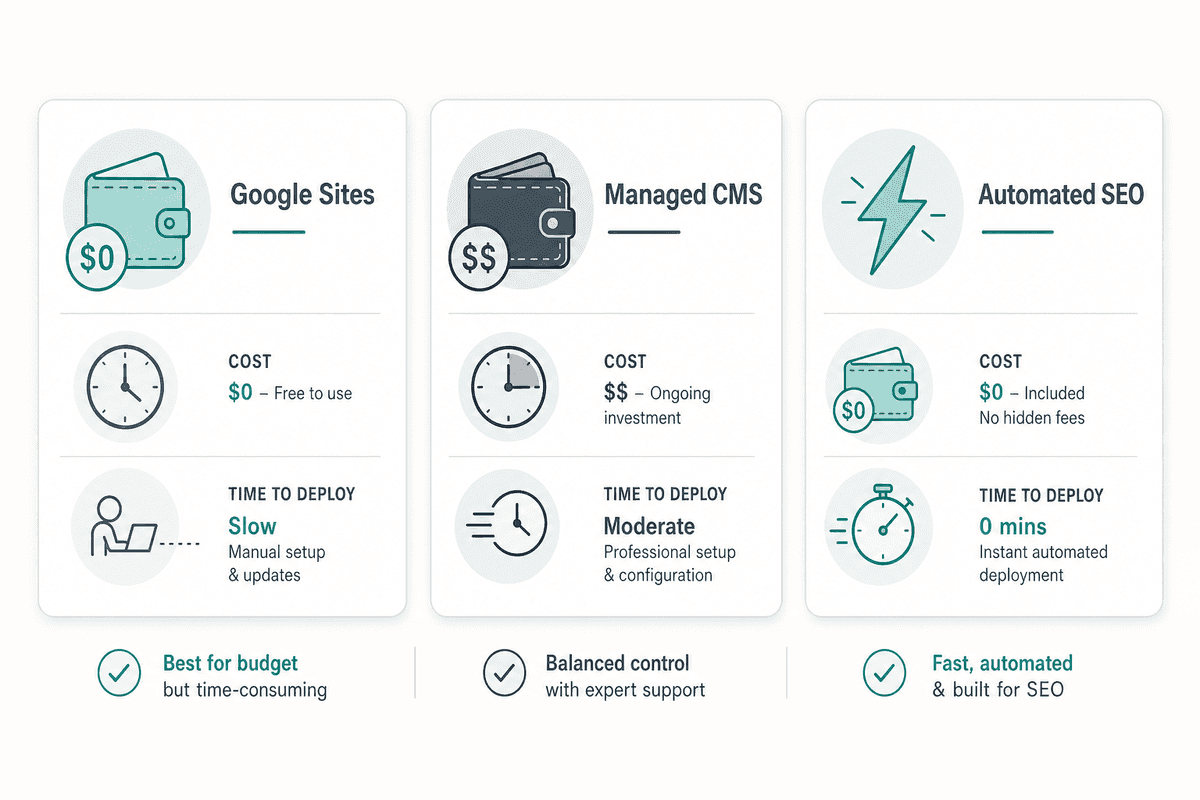
The primary draw of the platform is the cost. There are absolutely no maintenance fees or monthly hosting costs. The platform offers free Google Sites hosting that's secure, reliable, and backed by Google's global CDN.
However, it is crucial to separate the hosting cost from the operational cost.
If you are comparing basic hosting, Google Sites wins. But if you value your time at $50 or $100 an hour, spending 45 minutes manually linking subpages to create a fake blog feed makes Google Sites incredibly expensive in the long run. When evaluating SEO charges UK or US agency rates, you quickly realize that the real cost of content marketing isn't the software—it's the labor.
The Pros and Cons of Blogging on Google Sites
To make an informed decision, you must weigh the frictionless setup against the long-term scalability traps.
Pros
- Zero Learning Curve: If you can format a Google Doc, you can design a Google Site.
- Free SSL and Hosting: You don't have to worry about configuring SSL certificates, managing server bandwidth, or updating plugins to prevent security vulnerabilities.
- Deep Ecosystem Integration: Embedding Drive files, Calendars, Maps, and YouTube videos works flawlessly with a single click.
- Collaboration: Multiple team members can edit a site simultaneously, just like editing a shared spreadsheet.
Cons
- No CMS Database: You cannot easily tag posts, categorize them, or filter them.
- No API Access: You cannot connect Google Sites to automation platforms like BeVisible, Zapier, or Make to auto-publish content.
- Strict Design Limits: You cannot add custom CSS or modify the underlying HTML structure.
- Severe SEO Limitations: As detailed below, you lack control over the metadata search engines rely on to rank content.
The SEO Limits: Why Content Marketers Outgrow It
When founders ask if Google Sites is a good option for a personal blog, the answer depends entirely on whether they care about organic search traffic. If you just want a place to post links for your existing Twitter followers, it's fine. If you want to rank for "how to reduce SaaS churn," Google Sites will actively hold you back.
Here is a technical breakdown of where the platform fails from an SEO perspective.
1. Missing Meta Descriptions for Individual Pages
Google Sites allows you to add a site-wide meta description (the snippet of text that appears under your title in search results). However, you cannot set unique, custom meta descriptions for individual subpages. Search engines are forced to scrape the first few sentences of your page text, which rarely results in an optimized, high-converting SERP snippet.
2. Clunky URL Structures
Clean URL slugs are a fundamental ranking factor. While you can customize the path of a page, Google Sites does not allow for clean sub-directory structures (like yourdomain.com/blog/post-title). Furthermore, if you don't use a custom domain, your URL will look like sites.google.com/view/your-business-name/home, which signals low authority to users and algorithms alike.
3. Lack of Schema Markup
Schema markup (structured data) is the code that helps search engines understand the context of your content. It is what powers rich snippets, FAQ dropdowns, and author authority panels in the search results. Google Sites does not support custom JSON-LD schema markup.
If you want to appear in AI search engines like ChatGPT or Perplexity, answer-first structures and schema are non-negotiable. Platforms like BeVisible automatically inject precise schema markup into every article to optimize for AI extraction, a tactic that is literally impossible on Google Sites.
4. Poor Internal Linking Architecture
When you read the best SEO blogs, you notice they use sophisticated internal linking to pass "link juice" between pillar pages and cluster topics. Because Google Sites requires manual internal linking, as your site grows to 50 or 100 pages, managing these links becomes an impossible administrative burden. Broken links multiply, and your site architecture flattens, confusing search crawlers.
Myth-Busting: "Google Ranks Google Sites Better"
There is a persistent myth among beginners that because Google owns the platform, they give preferential treatment to Google Sites in the search results.
This is categorically false. Google's algorithm evaluates content based on relevance, user experience, backlinks, and technical optimization. Because Google Sites restricts your ability to optimize page speed, mobile core web vitals, and metadata, these sites frequently rank worse than a properly optimized WordPress or Webflow site targeting the exact same keyword.
BeVisible: Overcoming SEO Limits with Automated Publishing
If your goal is to build a legitimate organic growth channel, you need to treat your website like a software product, not a static document.
For SaaS founders, indie hackers, and e-commerce stores looking for organic traffic without hiring a large team, the jump from a manual Google Site to an automated CMS is the highest-leverage move you can make. This is where BeVisible comes into play.
Instead of spending hours designing manual pages and copying text blocks, BeVisible handles the entire SEO production pipeline automatically. Once connected to a modern API-ready CMS (like WordPress, Webflow, Notion, Ghost, or Shopify), BeVisible conducts competitor analysis and builds a 30-day content map tailored to your niche.
It writes, polishes, and publishes an article every 24 hours. More importantly, it solves every SEO limitation inherent to Google Sites:
- Automated Metadata: Perfectly crafted meta titles and descriptions for every post.
- Answer-First Structures: Optimized for both traditional SERPs and AI engines like Perplexity.
- Schema Markup: Automatically generated and injected.
- Smart Internal Linking: Connects new articles to existing cluster content seamlessly.
If you are serious about ranking, spending $199 a month for 30 daily, perfectly structured articles via BeVisible is a mathematical no-brainer compared to manually wrestling with Google Sites text boxes.
Frequently Asked Questions
Can I use a custom domain with Google Sites?
Yes. While the default URL is hosted on sites.google.com, you can connect a custom domain you own through your Workspace admin console. You will need to verify domain ownership via DNS records and configure your CNAME settings to point to Google's servers.
Does Google Sites have SEO tools?
No. Google Sites has virtually no built-in SEO tools. You can integrate Google Analytics to track visitors, and you can verify the site in Google Search Console to monitor performance, but you cannot edit page-level metadata, configure canonical tags, manage redirects, or add structured data.
Can you migrate a Google Sites blog to WordPress later?
Migrating away from Google Sites is a heavily manual process. Because there is no database and no RSS feed to export, you cannot use standard migration plugins. You will have to manually copy and paste the text and images from every single page into your new CMS, which is why choosing the right platform early is so critical.
Next Steps: Should You Launch a Google Sites Blog?
Your next step depends entirely on your business objectives and your willingness to tolerate manual work.
Do not use Google Sites if:
- Your primary goal is acquiring customers through organic Google search.
- You plan to publish more than one or two articles a month.
- You want to leverage automated content tools, API connections, or email newsletter integrations.
- You are building a high-performance SEO landing page meant to capture paid or organic conversions.
Use Google Sites if:
- You need a free internal wiki or employee intranet (where the platform truly shines).
- You are building a simple, static portfolio to send directly to clients via email.
- You have zero budget, zero technical knowledge, and only need a digital presence so people who already know your brand name can find your contact information.
If you fall into the first category, skip the manual workarounds. Set up a Ghost or WordPress installation, connect it to BeVisible, and let automation turn your website into a daily source of ranked answers while you focus on actually building your business.