
You spend hours designing a clean, functional layout using Google Sites, but when you hit publish, you are handed a default URL that looks like sites.google.com/view/yourbusinessname. If you are trying to rank in search engines, build a SaaS brand, or capture leads, a default subfolder URL damages your credibility before a visitor even reads your first headline.
Mapping a custom domain to Google Sites is technically straightforward, but the process breaks down for most users at the DNS configuration stage. You are suddenly faced with CNAME records, domain ownership verification, and the notorious "naked domain" problem where your site loads at www.yourdomain.com but shows a dead page without the www.
This guide bypasses the typical dry help documentation. We will walk through exactly how to set up a custom domain for both free personal accounts and Google Workspace accounts, how to configure your DNS settings without breaking your email, and how to fix the specific errors that trigger when things go wrong.
Why Register a Custom Domain?
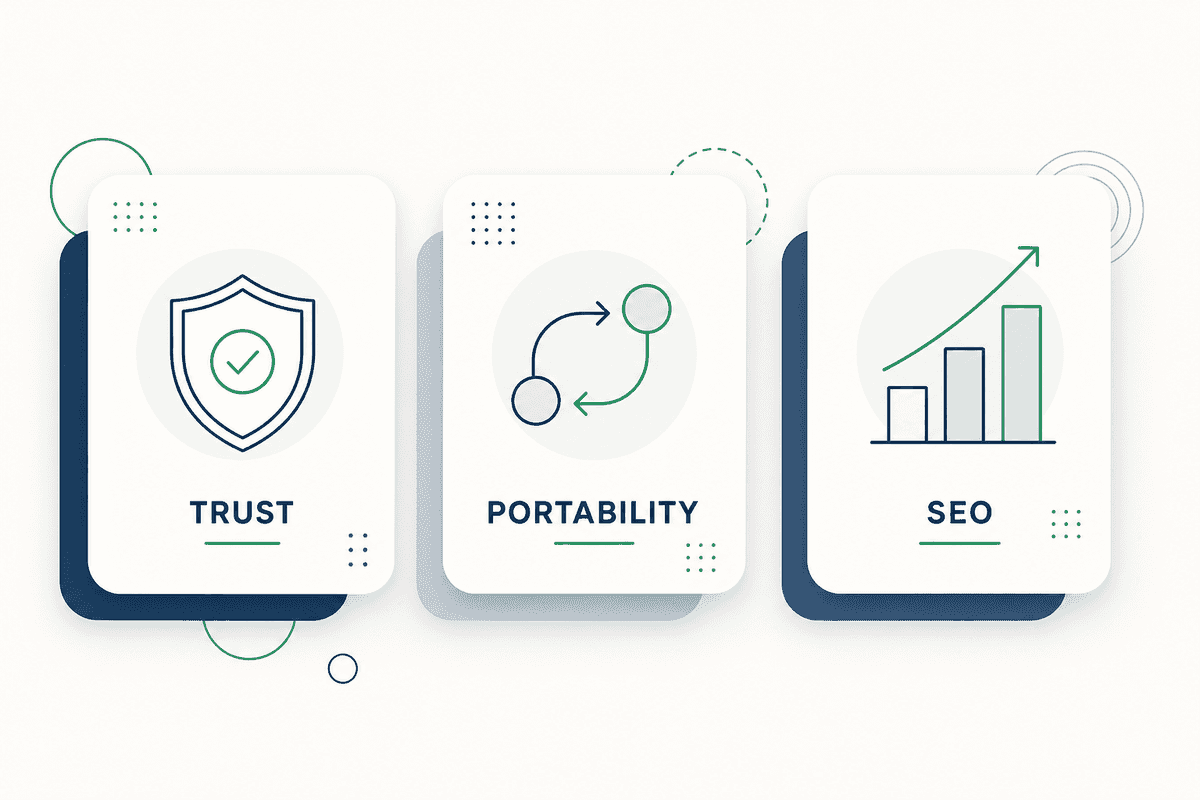
Operating without a custom domain signals to users (and search engines) that you are running a hobby project rather than a formal business. A dedicated domain name provides three specific advantages:
- Trust and Authority: Visitors are wary of entering payment details or email addresses on a shared subdomain.
- Brand Portability: If you ever outgrow Google Sites and migrate to a more robust CMS, you retain all your traffic and link equity because you control the domain.
- Search Engine Optimization (SEO): Google treats custom domains as distinct entities. While a default Google Sites URL can rank, it is significantly harder to build backlinks to a
sites.google.com/view/URL. If you are building an seo landing page or mapping out a content strategy, a custom domain is a hard prerequisite.
The Pre-Requisite: Verify Ownership of Your Domain
Before you can link your domain to Google Sites, Google requires mathematical proof that you actually own the domain you are trying to connect. This prevents bad actors from attempting to hijack web traffic.
Verification happens through Google Search Console.
- Go to Google Search Central and log into Search Console with the exact same Google account you used to build your Google Site.
- Click Add Property in the top left dropdown menu.
- Choose the Domain property type (the left-hand box) and enter your domain name (e.g.,
example.com). - Search Console will generate a TXT record (a long string of text starting with
google-site-verification=...). - Log into your domain registrar (Namecheap, GoDaddy, Cloudflare, etc.).
- Navigate to your DNS settings and add a new TXT record. Place the verification string in the "Value" or "Target" field. Set the "Name" or "Host" field to
@(which represents the root domain). - Return to Search Console and click Verify.
Note: TXT records usually propagate in under 5 minutes, but occasionally take up to an hour depending on your DNS provider.
How to Connect a Custom Domain to Your Google Sites
The steps to link your domain diverge entirely based on whether you built your site using a standard, free @gmail.com account or a paid Google Workspace business account.
Instructions for using a free personal Google or Gmail account
If you are using a free account, the setup happens directly inside the Google Sites editor.
- Open your published site in the Google Sites editor.
- Click the Settings gear icon in the top right corner.
- Select Custom domains from the left-hand menu.
- Click Start setup.
- Enter your domain name. Assuming you completed the verification step above, you will see a green checkmark indicating ownership is confirmed.
- Click Next and review the DNS instructions provided, then click Done.
Official documentation confirms that once connected in the editor, you must still route the traffic via your registrar, which we cover in the DNS section below.
Instructions for using a Google Workspace account
If your Google Site is located within a Google Workspace domain, you cannot add the custom domain directly from the Sites editor. You must route it through the Google Admin console. Many founders waste hours clicking around the Sites interface only to hit a wall because of this distinction.
- Log into your Google Admin console (
admin.google.com) using an administrator account. - Navigate to Apps > Google Workspace > Sites.
- Click on Custom URL.
- Click the + (Add) button.
- Select New Sites as the site type.
- Enter the underlying URL of your Google Site (the
sites.google.com/yourdomain.com/sitenamelink). - Enter the custom subdomain you want to use (usually
www). - Click Save.
Help with DNS Settings: Assigning a Custom URL Domain
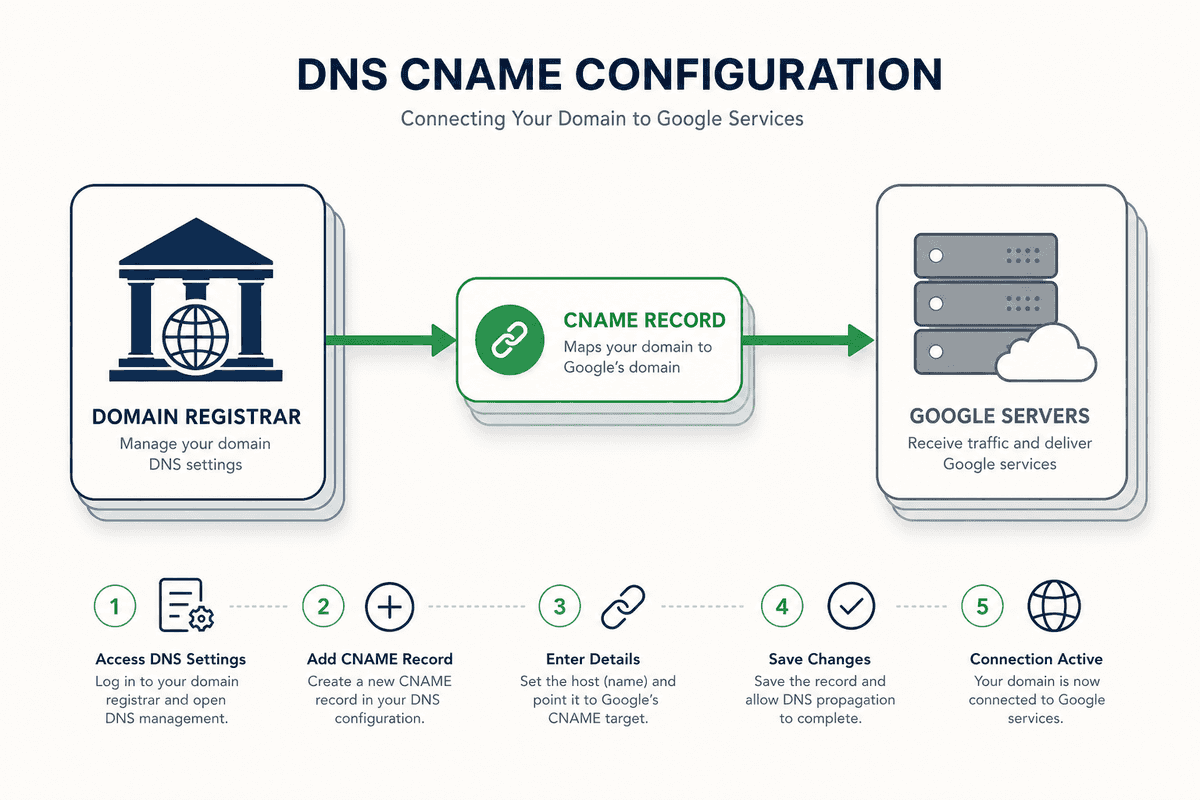
Connecting the domain inside Google's interface only handles the receiving end. You now need to tell your domain registrar to send the traffic to Google's servers.
This requires creating a CNAME (Canonical Name) record.
The Standard CNAME Configuration
Log into your domain registrar (where you bought the domain) and locate the DNS Management zone. You will need to add a specific record matching this format:
Warning: Do not include a trailing dot after com unless your specific registrar explicitly requires it (some older legacy systems do, but modern ones like Cloudflare or Namecheap do not).
As noted by community experts, pointing the www CNAME to ghs.googlehosted.com is the universal requirement for directing traffic to Google Sites.
How do I setup domain forwarding for URL without www?
This is the single most common failure point for Google Sites users.
Google Sites does not provide an IP address (an "A Record") for custom domains. You cannot point example.com (the "naked" or "root" domain) directly to Google Sites using a CNAME because DNS protocols strictly forbid CNAME records at the root level.
If you skip this step, users typing example.com into their browser will see an error page, while users typing www.example.com will see your site.
To fix this, you must use URL Forwarding (sometimes called Domain Redirecting) at your registrar:
- In your registrar's dashboard, look for a section called Domain Forwarding, URL Redirects, or Forwarding.
- Set the rule to forward the root domain (
yourdomain.com). - Set the destination to
https://www.yourdomain.com. - Choose 301 Permanent Redirect as the forwarding type.
This ensures that anyone who types your naked domain is instantly forwarded to the www version where your CNAME record handles the connection to Google Sites. Industry guides confirm this is the standard workaround for linking a Google Site with a custom domain.
Respond to an Error Message: Troubleshooting
Even with perfect configuration, you might encounter friction. Here is how to diagnose and resolve the most frequent errors.
"Invalid DNS" or "Domain Not Verified"
If Google Sites rejects your domain connection, verify the following:
- Did you verify ownership using the exact same Google Account that owns the Google Site? Cross-contamination of accounts is the leading cause of this error.
- Did you accidentally delete the TXT verification record after verifying? The TXT record must remain in your DNS settings permanently. If you delete it, Google will periodically re-check, notice it missing, and severe the connection.
Do I need to buy an SSL certificate?
No. One of the primary benefits of using Google Sites is that Google provisions and manages an SSL certificate for your custom domain automatically and for free.
However, this process is not instant. When you first connect your domain, visiting it might yield a scary "Your connection is not private" browser warning. This simply means Google is currently generating your SSL certificate.
If your custom domain stops working
If your site was working fine and suddenly drops offline, check these three factors:
- Domain Expiration: Did your credit card expire, causing your domain registrar to suspend your domain?
- DNS Overwrites: Did a colleague or IT team member modify the DNS settings to connect a new email tool, accidentally wiping out the
wwwCNAME record? - Workspace Changes: If you are on Google Workspace, did an admin alter sharing settings? If your site's sharing permissions revert to "Restricted to organization," external visitors will see a 404 error on your custom domain.
The 48-Hour Rule
Whenever you change DNS records, those changes must propagate across global servers. While Cloudflare or Namecheap might broadcast the change in minutes, local internet service providers cache older data.
If your domain works on your phone via cellular data but fails on your home Wi-Fi, it is a propagation delay. Community support threads frequently see users changing settings repeatedly in panic, which resets the propagation clock. Make the change once, and wait.
What Happened to Google Domains?
Historically, the easiest way to connect a domain to Google Sites was to buy it directly through Google Domains, which handled the DNS mapping automatically with a single click.
However, Squarespace acquired Google Domains.
What do I do since my domain transferred to Squarespace?
If your domain was migrated, you do not need to take immediate action; your DNS records transferred over intact. However, to make future changes, you must now log into the Squarespace domain management portal.
Is there special support with Squarespace on Google Sites?
No. Despite the acquisition, Squarespace Domains acts as a standard third-party registrar. You must manually configure the CNAME and URL forwarding rules in Squarespace exactly as you would for GoDaddy or Ionos. The one-click integration that existed with Google Domains is no longer available.
FAQ
Do I get a free domain with Google?
No. Google Sites is free to use and provides free web hosting, but you must purchase a custom domain from a registrar separately. You can still publish for free using the default sites.google.com web address if you prefer.
Can you add multiple domains to a single Google Site?
Yes. You can map up to five custom domains to a single Google Site. However, you must choose one as the primary domain to avoid duplicate content penalties in search engines. The secondary domains should be set up via your registrar to 301 redirect to the primary custom domain.
How much does it cost to buy a domain for Google?
Domain costs depend on the Top Level Domain (TLD) you choose. A standard .com typically costs between $10 to $15 per year. Specialized TLDs like .io or .ai can range from $40 to $100+ annually. You pay this fee to the registrar, not to Google Sites (which remains free to host).
Do I need to buy hosting for my site?
No. Google Sites operates as a fully managed platform. Your Google Drive account serves as the storage backend, and Google's infrastructure serves the web pages. You only pay for the domain name registration.
Next Steps for Your Published Site
Once your CNAME is configured and your naked domain forwards correctly, step away from the keyboard. Give the DNS settings 24 to 48 hours to fully propagate globally and for Google to provision the SSL certificate.
After your custom domain is live and secure, the real work begins: driving traffic. A beautiful site on a custom domain will still fail without consistent, structured content. While Google Sites is great for static pages, scaling a SaaS or e-commerce brand requires answering user queries daily.
If you want to bypass the massive expense of traditional seo charges uk agencies, consider automating your content pipeline. With platforms like BeVisible, you can input your newly minted domain, and the system handles the keyword research, generates a 30-day content map, and auto-publishes optimized, rank-ready articles to your CMS daily—allowing you to focus on product development while organic traffic grows in the background.