
Many founders and freelancers waste weeks agonizing over portfolio designs, paying for complex hosting, and wrestling with content management systems before they even launch. If you just need a professional, fast, and secure place to showcase your work, you are likely overcomplicating it.
A Google Sites portfolio is the zero-cost, zero-maintenance solution. It requires no coding, integrates directly with the tools you already use, and can be live on a custom domain before you finish your morning coffee.
Whether you are an indie hacker showcasing SaaS projects, a consultant hunting for clients, or a student entering the job market, this guide acts as a crash course to get your site live.
What is a Google Sites Portfolio?
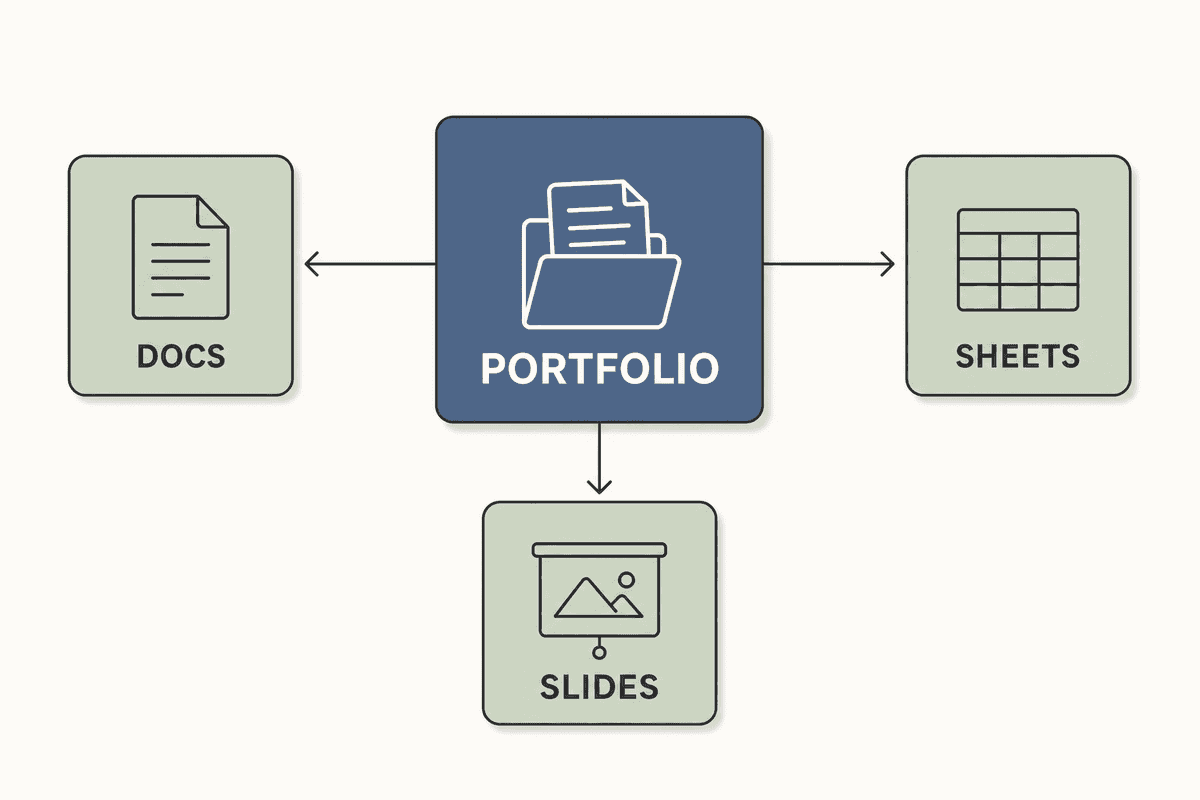
A Google Sites portfolio is a free website built using Google’s native site-builder, designed to host and display your professional work, resumes, and case studies. Because it lives entirely within the Google Workspace ecosystem, it acts less like a traditional CMS and more like a visual, public-facing front end for your Google Drive.
Instead of uploading files to a server, you simply pull them directly from your existing docs, sheets, and slides.
Benefits of a E-Portfolio on Sites
Choosing Google Sites over heavy alternatives like WordPress or Webflow comes with distinct advantages for simple portfolios:
- Zero Hosting Costs: The platform is 100% free with a Google account.
- Unmatched Security: Your site is hosted on Google’s infrastructure, meaning no plugin updates, no malware scans, and no server maintenance.
- Seamless Integration: You can embed live documents. If you update a project spreadsheet in your Drive, it automatically updates on the live portfolio.
- Speed: The drag-and-drop builder restricts complex code, ensuring your site loads quickly without requiring caching plugins or CDN configurations.
While heavy sites require deep technical audits—like checking SEO for Single Page Applications: The Technical Checklist—Google Sites keeps the technical burden at absolute zero.
Best Options for a Free Portfolio Website
When evaluating free website builders, it helps to understand where Google Sites fits into the landscape.
If you simply want a digital business card with a gallery of your work, Google Sites wins strictly on cost, as it is one of the few platforms that allows you to connect a custom .com domain for free.
Portfolio Type Website Templates
Google provides several native templates directly in the template gallery. Using templates prevents you from staring at a blank page and provides a mobile-responsive structure out of the box.
- The "Portfolio" Template: A classic grid layout. Perfect for designers and photographers who need image-heavy landing pages.
- The "Student" Template: Structured around classes, achievements, and extracurriculars.
- The "Project" Template: Designed for team collaborations, but easily adapted for an agency showcasing client work.
Popular Examples - Portfolio Use Cases
People from all walks of professional life use Google Sites to bypass expensive web development. You can see community examples of how users make their digital portfolio in Google Sites on forums like Reddit, highlighting how flexible the platform is.
Professionals
Agencies and consultants use the platform to build fast, targeted landing pages for specific pitches. For example, if you run a regional marketing firm and want to pitch local businesses, you might create a specific site highlighting your work ranking the Top 7 Agencies for SEO in Durham (Ranked 2026). Rather than cluttering your main corporate site, a lean Google Site serves as a highly targeted sales asset.
Student Class Portfolios
Universities heavily favor Google Sites for academic tracking. Students use them to compile research papers, project outcomes, and faculty reviews. Because the university often provides the Google Workspace account, sharing permissions can be tightly controlled within the academic institution.
Build a Portfolio with Google Sites
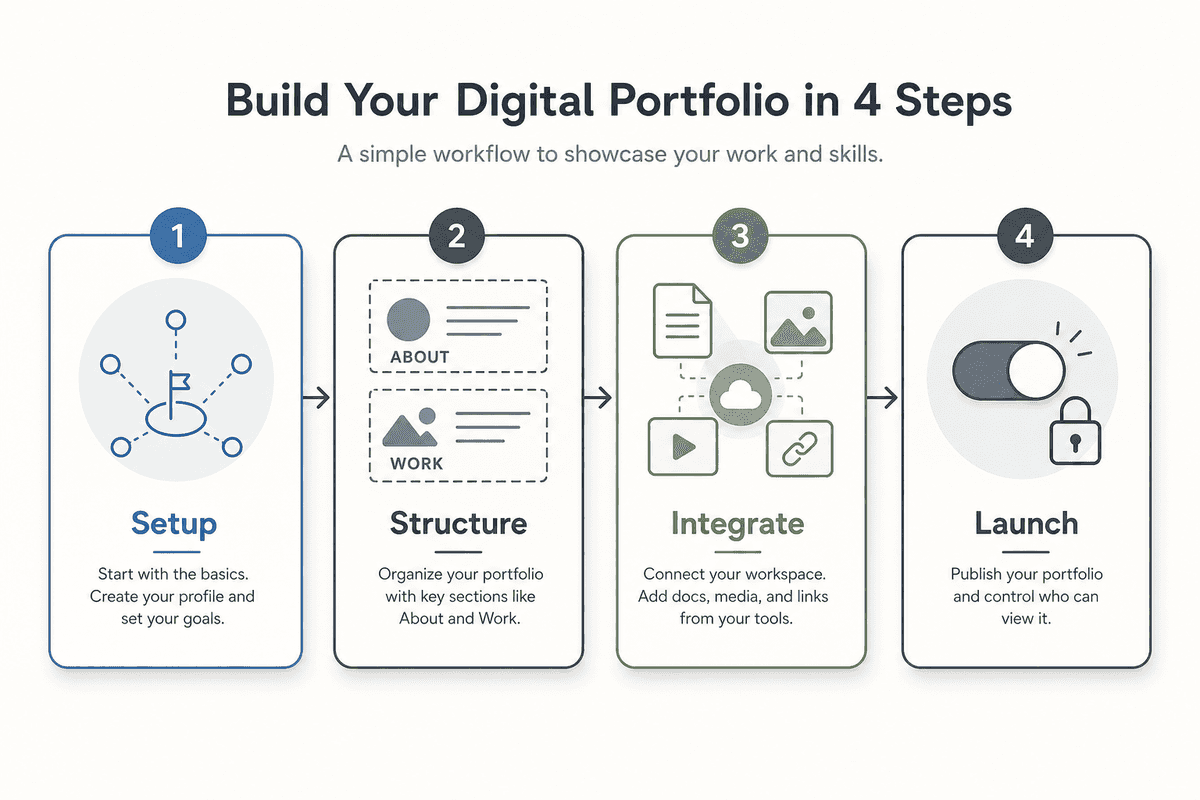
Treat the following section as a mini-course. We will cover the end-to-end setup of your new professional home on the web.
By the end of this course, you will be able to:
- Deploy a live website without writing code.
- Structure a professional "About" and "My Work" section.
- Embed dynamic media directly from your Workspace.
- Publish and control access to your site.
Teaching materials Optional
Before we begin, you may want to gather your existing materials. Having your resume (in PDF or Docs format), three to four project images, and a professional headshot ready will speed up the process. For academic users, reference standards like crafting online portfolios using Google Sites from university graduate schools for structuring your thesis work.
Introduction to Build a Portfolio with Google Sites
To begin, ensure you are logged into your primary Google account. Navigate to the Google Sites dashboard. If you want a structured, gamified walkthrough, you can follow an 8-step Eportfolio Instructables guide or formal LMS paths to build a portfolio with Google Sites.
Otherwise, just click the "Blank" option or select the "Portfolio" template from the gallery to start.
How to Make Portfolios, Resumes & CVs
Add a Theme and Title to Your Website
First, name your document in the top left corner (this is for your internal organization). Then, enter your site name in the top navigation bar.
On the right-hand sidebar, click the Themes tab. Google Sites limits typography and color choices by design to prevent users from breaking the mobile layout. Choose a clean theme like "Simple" or "Aristotle." Pick a primary color that matches your brand and select a highly readable font.
Add an Introduction and Image
Your homepage header is your billboard.
- Click on the header text and write a clear, one-sentence value proposition.
- Avoid vague titles like "Welcome to my digital home." Instead, use specific terms: "B2B SaaS Content Marketer & Copywriter."
- Upload a high-quality header image. Use the "Change Image" button. Ensure the background image has enough contrast so your text remains readable.
Create Your “My Work” Page
A portfolio without proof is just a personal blog. You need a dedicated section for your case studies.
- Go to the Pages tab on the right sidebar.
- Click the "+" icon to add a new page and name it "My Work" or "Projects."
- Switch to the Insert tab and select a "Content Block." The standard image-plus-text blocks work best here.
- Add a thumbnail of your project, a bold title, and a two-sentence summary of the results you achieved.
Best Features to Use
The most powerful feature of Google Sites is the native Embed capability. Scroll down the Insert menu to find specific Workspace blocks.
- Google Docs: Embed your live resume. When you update the Doc in your Drive, your website updates instantly.
- Google Slides: Pitch decks and visual presentations can be embedded so visitors can click through them directly on the page.
- YouTube: Embed video case studies or introductory videos without slowing down your page load speed.
Important Tips for an Impressive Site
To elevate your site from a basic template to a professional asset, follow these two rules:
- Check Mobile Preview: Click the device icon at the top of the editor. Over 50% of your visitors, especially recruiters viewing links from an email on their phone, will see the mobile version. Ensure your images stack correctly and your text isn't too large.
- Connect a Custom Domain: A URL like
sites.google.com/view/yournamelooks amateur. Go to Settings (the gear icon) > Custom Domains > Start Setup. You can buy a domain directly through Google Domains (now managed by Squarespace) or connect a domain you already own from providers like Namecheap or GoDaddy.
Advanced: Beyond the Basic Portfolio
Google Sites is exceptional for static portfolios, but it has limitations if your goal is aggressive organic growth. It lacks advanced tagging, native blogging infrastructure, and schema markup capabilities.
If your portfolio is a stepping stone to a full business—perhaps an agency looking to capture clients searching for SEO Charges UK: Agency Rates vs Automation (2026) or an e-commerce consultant recommending the 7 Best Etsy SEO Tools to Boost Sales in 2026—you will eventually need a system built for content velocity.
When to upgrade: Once your portfolio starts generating leads, transitioning to a CMS like WordPress or Webflow allows you to scale. If you are a solo founder or small agency without a dedicated marketing team, scaling content is often the biggest bottleneck.
This is where BeVisible fits into your stack. BeVisible is an automated SEO content generation and publishing platform that handles the full production pipeline. Instead of spending hours writing, BeVisible connects to your WordPress or Webflow site via API, conducts keyword research, builds a 30-day content map, and automatically writes, polishes, and publishes articles every 24 hours. For $199 a month, you get 30 answer-first, AI-optimized articles, turning your site into a daily source of ranked answers for Google and ChatGPT.
Until you need daily automated publishing, a Google Site portfolio is exactly what you need to establish your baseline presence.
How to Publish and Share Your Site
Share and Publish Your Site
When your layout is complete, you need to make it live.
- Click the blue Publish button in the top right corner.
- Choose your web address (if you aren't using a custom domain yet).
- Crucial Step: Check your permission settings. Click "Manage" under "Who can view my site." Ensure it is set to Public. If it is set to restricted, visitors will hit a sign-in page to create or view the e-portfolio, creating massive friction.
- Click Publish.
Warning: Closing this page may affect activity tracking!
(Just a friendly reminder: If you are building your site in another tab right now, make sure you hit that Publish button to save your live progress before closing out!)
Review
Let's review the core concepts. You have learned that Google Sites is a free, secure, and rapidly deployable platform. You know how to select themes, structure your navigation, embed live Workspace documents, and optimize for mobile viewing. You also understand the limitations of the platform regarding scalable SEO and when it makes sense to upgrade to an automated content system.
Quiz
Run through this quick pre-flight checklist before sharing your link:
- Is your custom domain connected and propagating?
- Does the mobile preview look clean and readable?
- Are your embedded Google Docs set to "Anyone with the link can view" in Google Drive?
- Is your site publish setting set to "Public"?
Extensions
Want to push your site further? Try embedding a Google Form on a "Contact Me" page to capture lead emails directly into a Google Sheet. You can also explore how to structure the layout like a high-converting asset by reading How to Build an SEO Landing Page (7-Step Guide).
Build a Portfolio with Google Sites Wrap-Up
Your portfolio is not your life's work; it is simply a vessel to display it. Stop letting perfectionism delay your launch.
Take 15 minutes today. Open a blank Google Site, add your best case study, embed your resume, and hit publish. You can always iterate tomorrow, but you can't rank, share, or secure clients with a website that doesn't exist.