
You log into Google Search Console (GSC) and see the dreaded flatline. Or worse, your total indexed pages count is slowly bleeding out, replaced by cryptic "Discovered - currently not indexed" warnings.
Most marketing teams wait for Google to tell them something is broken. By the time GSC flags an indexing error, you have already lost weeks of organic traffic. Worse, in the era of AI-assisted search, indexing errors don't just drop you from traditional search engine results pages (SERPs)—they completely erase you from AI tools like ChatGPT, Gemini, and Perplexity, which rely on traditional search indexes and clean, accessible site architecture to source their answers.
Running your own website crawl allows you to audit your site exactly how a search engine bot does. You identify the 404s, the canonical loops, and the JavaScript rendering failures before they hit production, or at least before Google’s next crawl cycle.
Here is how to crawl a website, triage the data, and fix the indexing errors holding back your search visibility.
Why Waiting for Google Search Console is a Strategic Mistake
Google Search Console is an invaluable tool, but it is a lagging indicator. Googlebot does not crawl your entire site every day. Depending on your site's authority and crawl budget, Google might visit your high-priority pages weekly, while deeper blog posts or legacy feature pages might not see a bot for months.
When you push a code update that accidentally slaps a noindex tag on your pricing page, GSC won't alert you until Googlebot attempts to crawl that specific page, processes the tag, drops the page from the index, and updates the GSC dashboard. That entire process can take weeks.
Proactive crawling allows you to:
- Pre-flight major site changes: Crawl a staging environment before pushing updates live.
- Identify structural traps: Find infinite redirect loops and massive parameter chains that waste search engine crawl budgets.
- Audit AI accessibility: Large Language Models (LLMs) and AI search agents frequently use lightweight crawlers that fail to render complex DOMs. If a local crawler struggles to parse your architecture, AI bots will definitely fail.
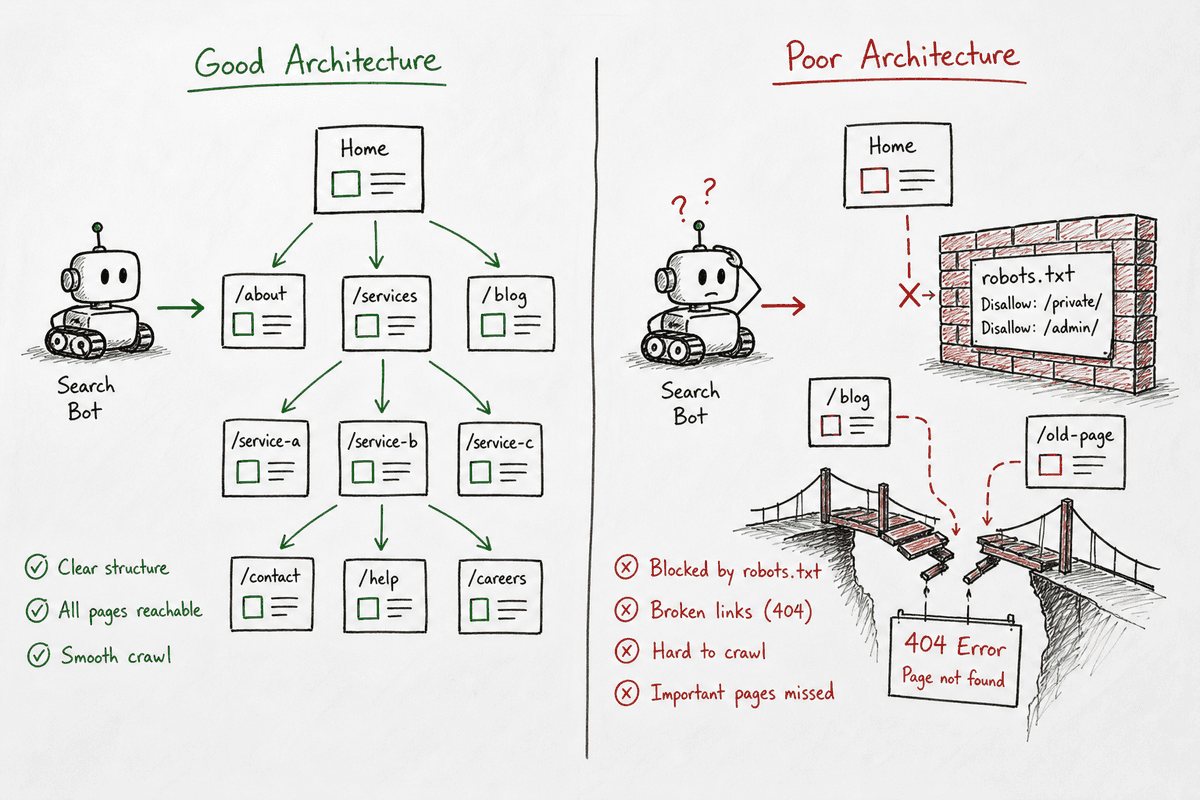
The Core Setup: Choosing Your Crawler
Before you can audit your site, you need the right software. Crawlers generally fall into two categories: desktop-based and cloud-based.
For most B2B SaaS teams, agencies, and mid-market companies, Screaming Frog SEO Spider or Sitebulb are the industry standards. They provide the granular, URL-by-URL data necessary to diagnose complex indexing issues.
Step 1: Configuring Your Crawl Parameters
Running a raw, unconfigured crawl on a large website is a recipe for disaster. You risk bogging down your own servers, running out of memory, or gathering useless data.
Before you hit "Start," configure these three critical settings.
1. Enable JavaScript Rendering
Many modern sites are built as Single Page Applications (SPAs) using frameworks like React, Angular, or Vue. If you crawl a React site with standard HTML settings, the crawler will likely return a blank page or a single script tag.
Search engines render JavaScript, so your crawler must do the same.
- In Screaming Frog: Navigate to
Configuration>Spider>Renderingand select JavaScript. - This instructs the crawler to load the headless browser (Chromium), execute the scripts, and read the final DOM just like Googlebot.
If you are auditing a highly complex web app, review SEO for Single Page Applications: The Technical Checklist to ensure your crawler settings mirror real-world indexing conditions.
2. Connect Your APIs (GSC and Analytics)
Crawling a site tells you what is technically broken. Connecting Google Search Console and Google Analytics APIs tells you which broken pages actually matter.
By authenticating GSC within your crawler, you pull live click, impression, and indexability data directly into your crawl report. When the crawl finishes, you can sort your 404 errors by "Highest Clicks in the Last 30 Days" to instantly prioritize your triage list.
3. Set Parameter Exclusions and URL Limits
E-commerce sites and SaaS directories often feature faceted navigation (e.g., filtering by color, size, or price). Each filter generates a new URL parameter (?color=red&size=large).
If you don't exclude these parameters, your crawler will fall into an infinite "spider trap," crawling millions of variations of the same page until your computer crashes.
Navigate to your crawler's exclusion settings and block patterns like *?sort=* or *?filter=* unless you explicitly want to audit those specific URLs.
Step 2: Executing the Crawl and Monitoring Progress
Once configured, input your root domain (e.g., https://yourwebsite.com) and initiate the crawl.
Watch the status codes closely during the first five minutes. If you immediately see a flood of 403 Forbidden errors, your site’s firewall or CDN (like Cloudflare) is likely blocking the crawler. You will need to whitelist your IP address or change the crawler's User-Agent to mimic Googlebot.
A note on speed: Crawlers can simulate hundreds of concurrent connections. If you crawl a small or under-resourced server too aggressively, you effectively launch a DDoS attack against yourself. Cap your crawler at 2-5 URLs per second to be safe.
Step 3: Triage the 5 Most Critical Indexing Errors
When the crawl reaches 100%, you will be staring at a massive spreadsheet of URLs, status codes, and tags. Do not panic. Filter the noise and tackle these five specific indexing errors first.
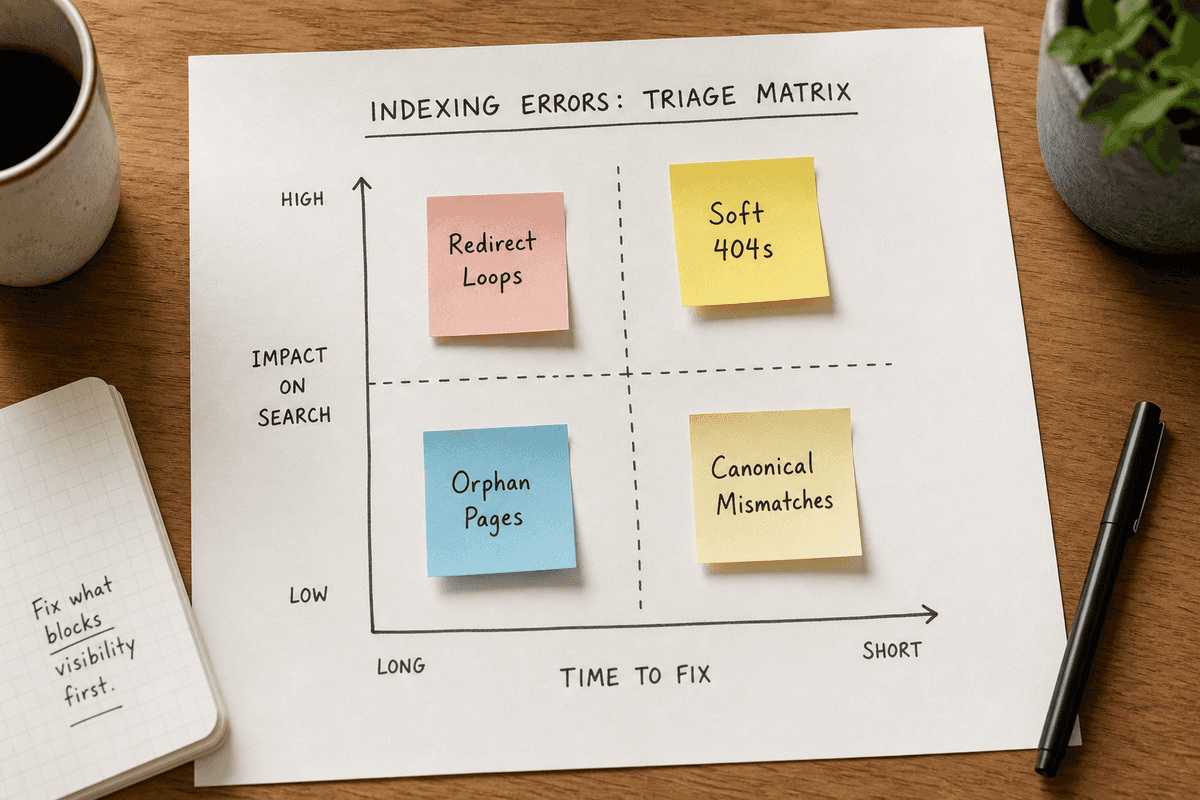
Error 1: Soft 404s and Broken Internal Links
The Problem: A standard 404 Not Found is normal—pages get deleted. The indexing error occurs when your active pages still internally link to those deleted pages, trapping search bots in dead ends. A "Soft 404" is worse: the page displays an "out of stock" or "not found" message to the user, but the server returns a 200 OK status, confusing search engines.
The Fix:
- Filter your crawl report for
Status Code: 404. - Look at the "Inlinks" tab to see which active pages are linking to the dead URL.
- Remove or update the internal links on those active pages.
- Ensure any removed page either serves a hard
404/410or301redirects to a highly relevant alternative. (For deeper guidance on structuring these pages, see How to Build an SEO Landing Page (7-Step Guide)).
Error 2: Redirect Chains and Loops
The Problem: A redirect chain occurs when URL A redirects to URL B, which redirects to URL C. A loop occurs when URL C redirects back to URL A. Search engines despise redirect chains. They waste crawl budget and dilute page authority. Googlebot typically abandons a crawl after five consecutive redirects.
The Fix:
- Export the "Redirect Chains" report from your crawler.
- Update internal links so they point directly to the final destination URL (URL C), bypassing the chain.
- Update your server's
.htaccessor routing rules to redirect URL A straight to URL C.
Error 3: Non-Indexable Canonical Tags
The Problem: Canonical tags tell search engines which version of a page is the "master" copy. A massive indexing error occurs when a page points its canonical tag to a URL that returns a 404, or to a URL that has a noindex tag. You are essentially telling Google: "Index this other page instead," but the other page doesn't exist or refuses to be indexed.
The Fix:
- Filter for "Non-Indexable Canonicals."
- Review each instance. Ensure every canonical tag points to a live,
200 OK, indexable URL.
Error 4: Orphan Pages
The Problem: An orphan page is a live URL that has zero internal links pointing to it from your own website. Crawlers (and search engines) usually find pages by following links. If a page is orphaned, Google might never find it, or if it does (via a sitemap), it will assign it very low authority because you haven't bothered to link to it.
The Fix:
- Connect your GSC and Analytics APIs to your crawl.
- Compare the URLs the crawler found via internal links against the URLs found in your XML Sitemap and Analytics.
- Any URL found in the sitemap but not found by the crawler is an orphan. Add contextual internal links from relevant, authoritative pages on your site to rescue these orphans.
Error 5: Accidental Staging Leakage (noindex vs robots.txt)
The Problem: Developers often block staging environments using robots.txt (Disallow: /). When pushing to production, they might accidentally bring that robots.txt file with them, de-indexing the entire site overnight.
The Fix:
- Always check the "Blocked by Robots.txt" report.
- Remember this nuance:
robots.txtblocks crawling, but anoindextag blocks indexing. If a URL is blocked byrobots.txt, search bots can't read the page to see thenoindextag. If other sites link to that URL, Google might still index the URL without knowing its contents, resulting in the ugly "Information for this page is unavailable" SERP result.
Advanced Tactics: Crawling Single-Page Applications (SPAs)
If your platform is built on React or Vue, crawling becomes significantly more complex. SPAs heavily rely on client-side rendering, meaning the browser (or crawler) has to do the heavy lifting of assembling the HTML.
If your crawler fails to render the JavaScript, you will miss vital SEO elements like dynamically injected meta titles, content blocks, and internal links.
To ensure your SPA is actually indexable:
- Check for dynamic rendering implementations (serving pre-rendered HTML to bots while serving JS to users).
- Ensure your internal navigation uses standard
<a href="...">tags, not JavaScriptonClickevents. Bots do not click buttons; they follow links.
For a deeper dive into optimizing these frameworks, Implementing SEO in Single Page Applications (3 Ways) and Single-Page Application SEO: What Works in 2026? cover the architectural fixes required.
How Crawl Budgets Impact AI Search Visibility
AI agents—whether they are powering Perplexity, ChatGPT's web search, or industry-specific LLMs—operate with their own resource constraints. They do not have the infinite crawling resources of Googlebot.
If an AI agent visits your site to answer a buyer’s prompt and encounters a bloated architecture filled with redirect loops, massive uncompressed images, and broken internal links, it will simply time out and pull information from your competitor's faster, cleaner site.
- Clean architecture equals AI visibility: AI models prefer heavily structured, fast-loading, easily parseable HTML.
- Orphan pages don't get cited: If an AI assistant navigates your site to find documentation or pricing to answer a prompt, it follows internal links. Orphan pages are functionally invisible to AI web agents.
Building a Routine Crawl Schedule
Fixing indexing errors is not a one-time event; it is a routine maintenance process. The frequency of your crawls should match your publishing velocity and development cycles.
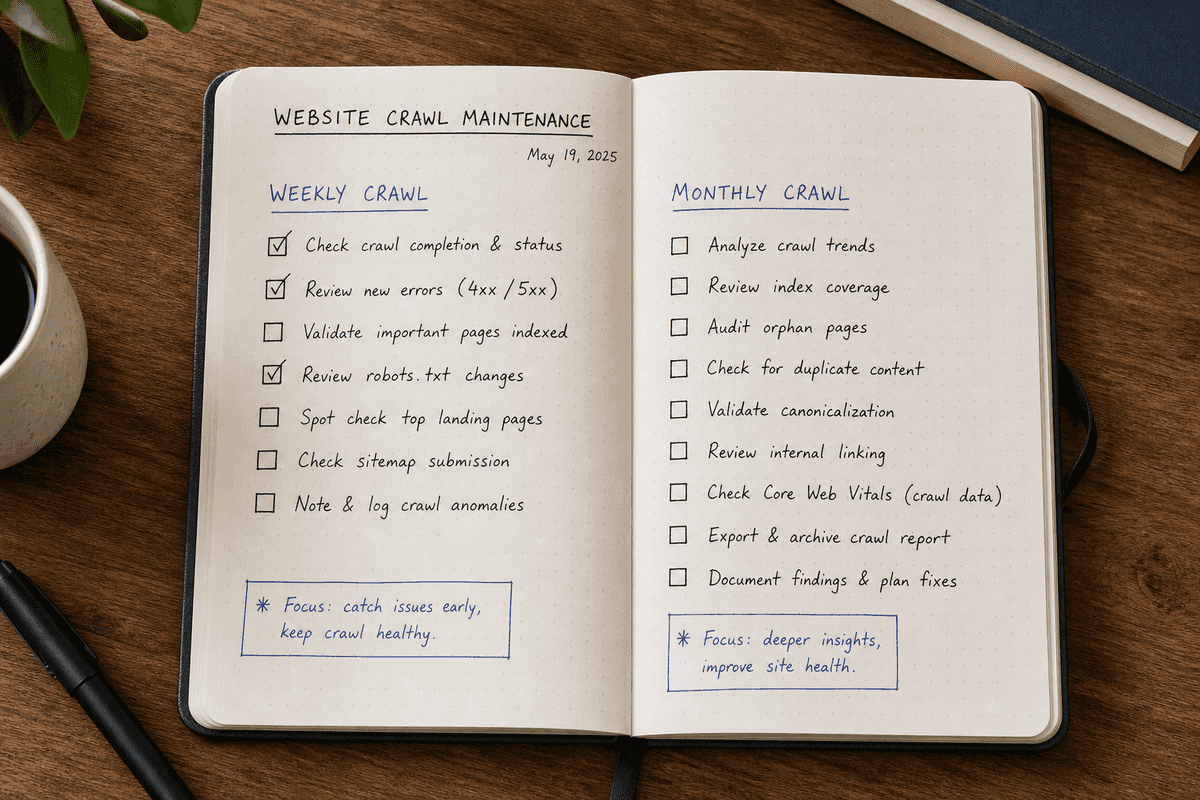
- Daily or Weekly: Large e-commerce stores, news publishers, and sites generating programmatic SEO content.
- Bi-Weekly or Monthly: Standard B2B SaaS sites, service businesses, and active blogs. (For inspiration on setting up high-performing content engines, check out the 11 Best SEO Blogs Every SaaS Founder Needs (2026)).
- Ad-Hoc: Always run a full crawl immediately before and immediately after any major site migration, CMS change, or domain switch.
By taking control of the crawling process, you stop relying on search engines to report your failures. You uncover technical bottlenecks, secure your indexing status, and ensure your content is readily available to both traditional search algorithms and the next generation of AI-driven search agents.