
Many digital-first businesses, including software startups, agencies, and e-commerce brands, completely ignore their physical footprint. They assume that because they sell globally, local search does not apply to them. But Google heavily weights geographical relevance. When a potential high-value client searches for "B2B software agency near me" or "e-commerce fulfillment in [City]," the companies that show up are the ones communicating their location clearly to search engines.
Setting up the Yoast Local SEO plugin is one of the highest-leverage tasks you can perform on a WordPress site to capture this localized intent. It bridges the gap between your physical office and your digital presence, turning your address into structured data that Google understands immediately.
Rather than treating local search as a complex, ongoing campaign, you can configure the technical foundation in an afternoon. This guide walks through five specific, high-impact configuration tweaks within the Yoast Local SEO interface that directly translate into higher visibility and more inbound leads.
The Disconnect Between Physical Locations and Digital Authority
Search engines treat location data as a trust signal. Even if your target audience spans continents, verifying your operational base proves you are a legitimate entity. For agencies and regional service providers, this is non-negotiable. For instance, ranking on a query like "SEO services" is fiercely competitive globally, but dominating localized terms is entirely achievable with the right signals.
We see this constantly when evaluating how agencies structure their local landing pages. Strategies that successfully rank for terms like those seen by the Top 7 Agencies for SEO in Durham (Ranked 2026) rely heavily on precise, error-free local schema.
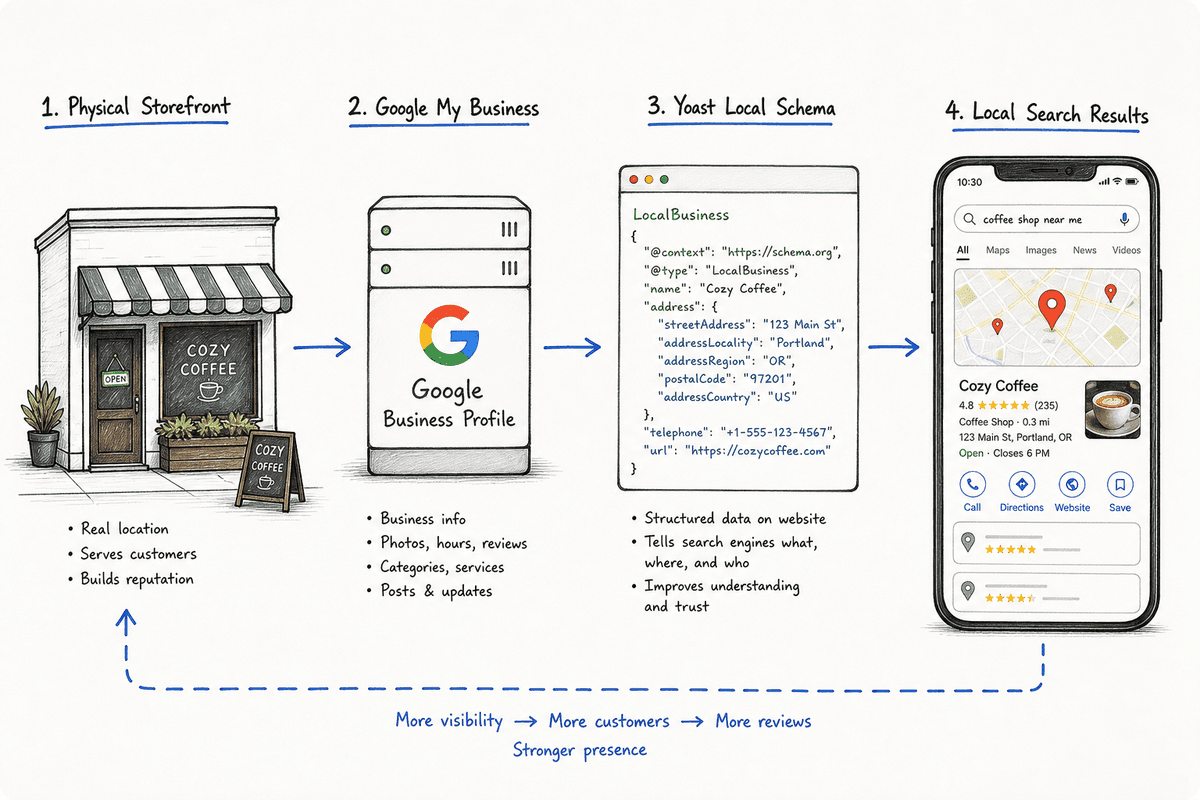
Google cannot guess your location based on a text string in your footer. The crawler needs machine-readable code. That is exactly what the Yoast Local SEO plugin handles. It strips away the technical headaches of writing JSON-LD schema by hand and creates a centralized hub inside WordPress to manage your geographic data.
Tweak 1: Configure Your Primary Business Info for Schema Accuracy
The absolute core of the Yoast Local SEO plugin lies in the Business info settings. Getting this section wrong means feeding search engines conflicting data, which is the fastest way to drop out of local Map Packs.
Single vs. Multiple Locations
The first toggle you encounter dictates the entire architecture of your local SEO setup. You must specify whether your business has a single location or multiple locations.
If you operate out of one headquarters, leave it set to Single location. The plugin will then attach your local business schema directly to your homepage. If you have distinct physical offices that customers can visit or contact, select Multiple locations. This completely changes how the plugin behaves, generating a custom post type called "Locations" so you can manage each branch individually.
Filling Out the Business Info Details
Accuracy here dictates your success. The information you input into the plugin must match your Google Business Profile (formerly GMB) character for character. This concept is known as NAP consistency (Name, Address, Phone Number).
Here is a breakdown of the fields that directly impact your local schema:
- Business Name: Use your exact registered name. Do not stuff keywords here (e.g., use "Apex SaaS Solutions," not "Apex SaaS Solutions - Best B2B Agency").
- Business Type: Yoast allows you to select from a standardized list of schema types. Choose the most specific category available. If you are an agency, "ProfessionalService" or "LocalBusiness" is appropriate.
- Address Details: Street address, city, state, and zip code.
- Coordinates: The plugin can automatically fetch your latitude and longitude, but you should verify these manually if your office is in a complex or industrial park.
By fully completing this section, you automatically generate local business listings with schema structured data. Google uses this exact structured data to populate rich snippets, knowledge panels, and voice search answers. It removes all ambiguity about who you are and where you operate.
Tweak 2: Integrate the Google Maps API for Embedded Authority
Embedding a generic Google Map via an iframe on your contact page is the old way of doing things. It provides a visual aid for users but does very little for your technical local SEO.
Yoast Local SEO requires a direct connection to the Google Maps API. This integration ensures your maps load faster, interact smoothly with your site styling, and feed accurate geospatial data directly into your localized schema.
Step-by-Step API Key Setup
Many users skip this step because navigating the Google Cloud Console feels intimidating. However, configuring the Maps settings and generating an API key is a one-time task that yields permanent benefits.
- Log into the Google Cloud Console with the Google account tied to your business.
- Create a new project specifically for your website's API keys.
- Navigate to the "APIs & Services" dashboard.
- Enable three specific APIs: Maps JavaScript API, Geocoding API, and Places API.
- Generate your API Key.
- Crucial Step: Restrict your API key. Set the restriction to "HTTP referrers (web sites)" and enter your domain (e.g.,
*yourdomain.com/*). This prevents third parties from stealing your key and racking up usage charges. - Copy the restricted key and paste it into the API key field within the Yoast Local SEO settings.
 Once connected, the plugin validates your location data seamlessly. This connection also powers the store locator functionalities if you use them. If you run into issues during setup, checking a Configuration guide for Local SEO can help troubleshoot API errors, which usually stem from skipped billing setups in Google Cloud.
Tweak 3: Define Granular Opening Hours (And Why It Impacts Rankings)
You might assume that listing your hours in plain text on your contact page is sufficient. It is not. Search engines heavily factor "open now" status into local mobile queries.
If a prospect searches for a local service on a Friday afternoon, Google prioritizes businesses it can confirm are currently open. If your opening hours are not properly marked up in your schema, Google might skip you entirely to avoid sending a user to a closed business.
The Yoast Local SEO Opening hours settings panel allows you to define this globally for a single location or individually for multiple locations.
Handling Edge Cases
Do not just set Monday through Friday, 9 to 5, and forget about it. Use the plugin's advanced settings to handle edge cases that cause friction for potential leads:
- Two sets of hours in one day: If you close for a two-hour lunch break, you can add multiple time blocks for a single day.
- Holiday hours: Search intent spikes around holidays. You can configure special opening hours for specific dates well in advance.
- 24/7 Operations: If you offer 24/7 technical support or emergency services, toggle this specific setting so Google knows your business is always active.
Matching these hours exactly to your Google Business Profile prevents the dreaded "hours may differ" warning that Google slaps on listings when it detects conflicting information across the web.
Tweak 4: Deploy Yoast Local SEO Blocks and Widgets Strategically
Once the backend data is structured correctly, you need to expose this information to your users in a format that the plugin controls. This ensures that the visible text on your page perfectly matches the hidden JSON-LD schema.
Yoast provides several methods to display your data: Yoast Local SEO blocks (for the Gutenberg editor), Widgets with page builders, and traditional Shortcodes.
The Core Blocks and Shortcodes
Depending on your site architecture, you should deploy these specific elements:
- Show Address Widget / Address Shortcode: This outputs your business name, address, phone number, and email. It automatically wraps this data in the correct HTML tags. Place this in your global site footer so your NAP data is present on every single page.
- Show Map Widget / Map Shortcode: This uses your Google Maps API key to render a fully interactive map. Place this prominently on your Contact page and any dedicated location landing pages.
- Show Opening Hours Widget: This displays your hours dynamically. If you change your hours in the global settings, this block updates instantly across your entire site.
- Store Locator Form Widget: For multi-location businesses, this allows users to enter their zip code and find the nearest office or retail location.
Placement Strategy
Do not cluster all of these into a single sidebar. Spread them logically based on user intent. If you are building a specific regional service page, integrating these blocks is foundational. You can see how this structural approach aligns with the steps in How to Build an SEO Landing Page (7-Step Guide), where technical accuracy supports the visible content.
Tweak 5: Optimize for Multiple Locations Using Location Archive Templates
If your business expands from one city to three, your local SEO complexity increases exponentially. Managing multiple locations is where the standard Yoast SEO plugin falls short, and where the Local SEO add-on proves its worth.
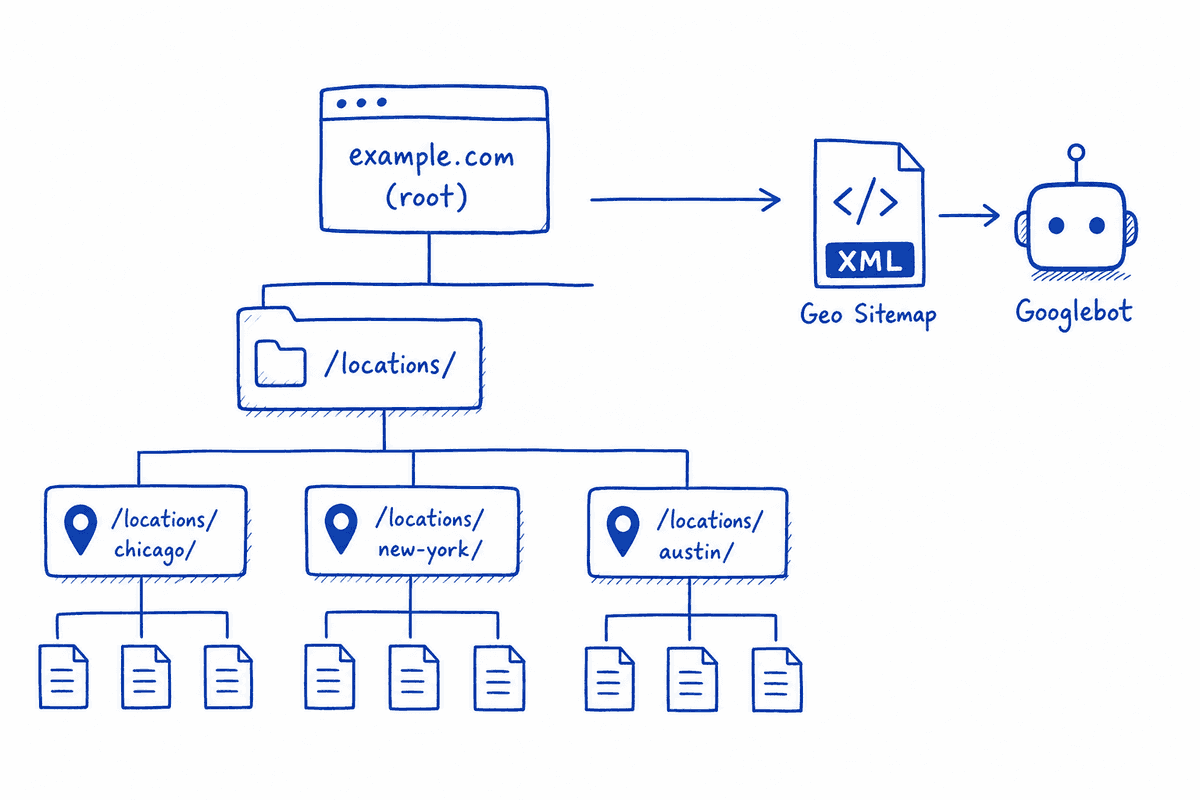
As soon as you toggle the "Multiple locations" setting, WordPress generates a new custom post type. Every location gets its own dedicated page (e.g., yourdomain.com/locations/chicago/).
Structuring the Location Pages
To maximize the lead generation potential of these pages, you need to treat each one as a highly optimized mini-homepage for that specific region.
- Unique Content: Do not just duplicate the text across all location pages and swap out the city name. Google filters out duplicate content. Write unique descriptions of the services offered at that specific branch, introduce the local team, and feature localized testimonials.
- Edit location archive template files: By default, Yoast outputs a basic archive page listing all your locations. If you have development resources, you should customize the
archive-wpseo_locations.phpfile in your theme. This allows you to build a visually engaging directory of your branches rather than a simple text list. - Shared Business Info: If all your branches share the same customer support phone number or corporate email, use the "Setting up a primary location and shared business info" feature. This prevents you from having to update 50 different location pages if your toll-free number changes.
Submitting the Geo Sitemap
When you activate multiple locations, Yoast automatically generates a specialized Geo Sitemap (a KML file and an XML sitemap for locations). This explicitly tells Google Maps and Google Search exactly where all your branches are.
You must ensure this specific sitemap is submitted via Google Search Console. It acts as a direct data feed, bypassing the need for Google to randomly crawl your site looking for new office addresses.
How Much Does Yoast Local SEO Cost? Is It Worth It?
A common question from founders and marketing teams is whether a specialized local SEO plugin is necessary, or if standard SEO practices are enough.
Yoast Local SEO is a premium add-on. As of 2026, pricing is typically structured as an annual subscription per site. When evaluating Yoast Local SEO: Is It Worth the Investment?, you have to look at the opportunity cost of bad data.
If you run an agency, the lifetime value of a single client secured through a "near me" search dwarfs the annual cost of the plugin. Compare this to the thousands you might spend on retainer fees trying to manually build local citations. For a broader perspective on agency costs versus tool automation, see our breakdown in SEO Charges UK: Agency Rates vs Automation (2026).
If you use managed hosting, sometimes these premium plugins are bundled. For example, specific WordPress tiers might include tools like the HostGator Plugin: Yoast Local SEO for WordPress right out of the box.
Common Pitfalls and Troubleshooting
Even with a streamlined interface, configuration errors happen. The majority of issues stem from ignoring updates or conflicting themes.
Keep an Eye on the Changelog
The team behind Yoast pushes constant updates to adapt to Google's changing schema requirements. Reviewing the Yoast Local SEO changelog reveals a continuous stream of bugfixes and enhancements. For instance, across versions 14.x and 15.x, numerous adjustments were made to how opening hours are formatted in JSON-LD and how the map widgets render in modern block themes.
Running an outdated version of the plugin can result in malformed schema. Google Search Console will flag this as "Unparsable structured data," which immediately strips your site of rich results in local search.
Theme Conflicts with Page Builders
While the Yoast Local SEO blocks work perfectly with Gutenberg, heavily customized page builders (like older versions of Elementor or WPBakery) sometimes strip out the schema data injected by the shortcodes. Always use the Rich Results Test tool provided by Google after setting up your location pages to verify that the LocalBusiness schema is actually rendering in the HTML source code.
If you hire external help to manage this and they fail to check the schema output, you are wasting money. Knowing how to verify these technical details yourself helps you avoid bad hires, a topic we cover in Hiring SEO Services in Phoenix? 5 Red Flags (2026).
Frequently Asked Questions
Does Yoast Local SEO work well with Single Page Applications (SPAs)?
SPAs (built on React, Vue, or Angular) present unique challenges for traditional WordPress plugins because the page does not reload in a way that typical PHP-based schema generation expects. If you run a headless WordPress setup feeding an SPA, the Yoast plugin will output the correct schema via the WordPress REST API, but your frontend developers must manually map that JSON data into the <head> of your application. For a deeper dive into making this architecture work, read SEO for Single Page Applications: A 5-Step Guide (2026).
Can I use Yoast Local SEO for WooCommerce?
Yes. Yoast offers specific integrations bridging local SEO and e-commerce. If you allow local pickup for physical products, the plugin hooks into WooCommerce to provide "Shipping method settings" tied to geographic radius, and can trigger "New order statuses" specifically for local fulfillment.
What if I have a service area business with no physical storefront?
If you operate a service area business (SAB) where you travel to customers (like a mobile detailing service or an IT contractor), you still need local schema. In the Yoast settings, you can configure your primary address for schema purposes but choose to hide the address widget on the front end, ensuring privacy while still communicating your operational base to search engines.
Finalizing Your Local Infrastructure
Local SEO is not about outsmarting Google; it is about providing the exact data Google requires in the exact format it prefers. The five tweaks outlined above—nailing your business info, connecting the Maps API, detailing opening hours, utilizing the correct widgets, and structuring multiple locations properly—transform a standard WordPress installation into a localized lead generation asset.
Once this infrastructure is set, the technical heavy lifting is done. You can step away from the configuration screens and return your focus to publishing high-quality, localized content that answers your market's questions.